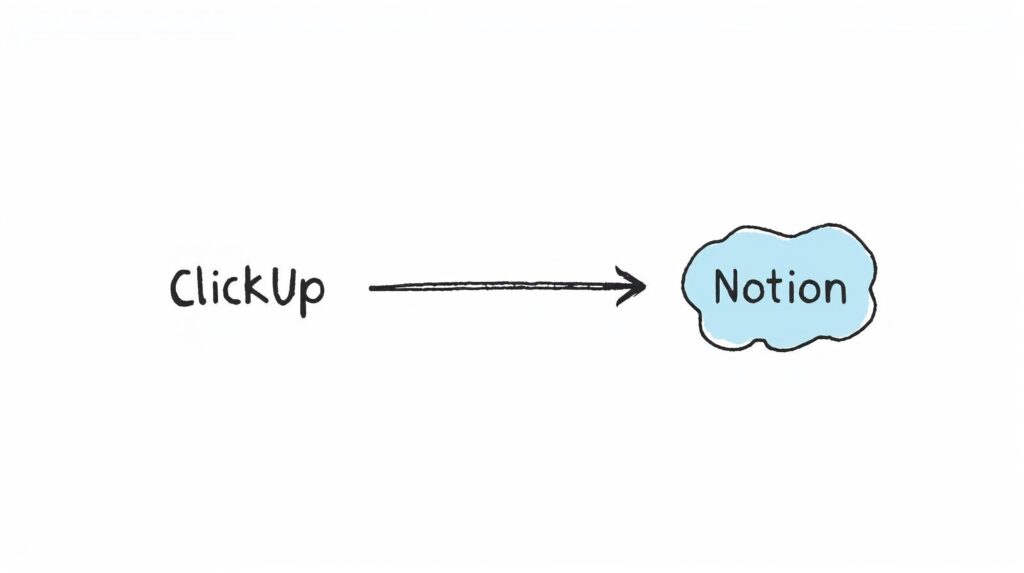

Most ClickUp-to-Notion migrations I see go wrong for the same reason. Someone on the leadership side decides to consolidate tools. The team that actually uses ClickUp every day gets told to switch. They hate it. They keep using ClickUp on the side. Six months later the company is paying for both.
Here’s how I handled this on a recent project, where a production team at a podcast company was deeply attached to their ClickUp setup and the rest of the business was spread across five other tools.
The Setup
A podcast production company running multiple scripted and unscripted shows. Production ran on ClickUp with a six-stage pipeline they’d fine-tuned over time. Marketing was on Airtable and Google Sheets. Sales tracked ad breaks in a Google Sheet. Finance was on its own island. Everyone worked well in their own tool, but nothing connected.
The operations lead wanted one central hub. Notion was the pick. But he asked me directly: “Can we keep ClickUp functionality for production? They don’t want to give it up.”
This is the exact moment where most migrations die. The team being asked to switch has a real reason not to.
What I Did Differently
Instead of fighting production’s attachment to ClickUp, I asked what they actually used it for. The answer was not what I expected.
They didn’t care about ClickUp itself. They cared about three things: their six-stage pipeline (Planned, Recorded, Editing, Under Review, Approved), the board view where cards moved through stages, and a few automations that moved tasks when statuses changed.
None of those are ClickUp-exclusive. Two of them, pipeline and board view, Notion does out of the box. The third, deep automations, Notion does partially but not fully.
So instead of promising everything, I split the conversation into two parts.
Part 1: What I Rebuilt Identically
The six-stage pipeline got rebuilt in Notion with the exact same names, the exact same order, and the exact same board view as ClickUp. When production opened the new workspace, their pipeline looked like home.
I added timeline view for the project manager, table view for anyone who wanted a spreadsheet feel, and gallery view for people who think visually. All the same data, different angles.
Each project calculates progress automatically by counting completed tasks against total tasks. This was a small upgrade over ClickUp. In the old system, someone had to update progress manually. In the new one, it updates itself every time a task is checked off.
Part 2: What I Was Honest About
Notion’s automation layer is not as deep as ClickUp’s. There are things ClickUp does (multi-step automations with conditional logic, deep integrations with specific triggers) that Notion either doesn’t do or does in a clunkier way.
I recorded a Loom explaining this honestly. I walked through exactly which ClickUp automations would translate, which ones would need to be rebuilt differently, and which ones would need a third-party tool like Make or Zapier to replicate. No overselling.
The team appreciated the honesty. Turns out they only used two of their ClickUp automations regularly, and both were easy to rebuild with Notion’s built-in buttons and formulas.
Part 3: The Real Upgrade
Here’s what ClickUp couldn’t do: connect production to the rest of the business.
In the old setup, when production marked an episode “Approved,” nothing downstream happened automatically. Marketing didn’t know. Sales didn’t know. Finance had no connection to it.
In the new Notion workspace, the same approval status now lives on the show’s central record. Marketing sees it on their project dashboard because their projects are linked to the same show. Sales sees it because ad inventory for that episode is connected to the same database. The admin dashboard rolls it up as a completed project in the quarterly view.
That’s the actual reason to migrate from ClickUp to Notion. Not because Notion is better at pipelines (it’s comparable), but because Notion can be the center of a business where ClickUp can only ever be a project management tool.
The Order of Operations That Made Adoption Work
This is the part most people get wrong. If you want a team to switch tools, build the new system around their workflow, not around your vision of a better workflow.
Here’s the order I followed:
- Rebuild the resistant team’s workflow first, identically. Production got their pipeline back before anyone else got anything new.
- Layer the upgrades on top, don’t replace. Keep the pipeline the same, add progress formulas on top. Keep the board view the same, add timeline and table views as options.
- Be honest about what’s worse. If the new tool is weaker somewhere, say so upfront. Don’t let them discover it after they’ve invested time.
- Show the connection last. Once they trust the new system does what the old one did, show them what the old one couldn’t do. That’s when you earn buy-in.
Common Mistakes in ClickUp-to-Notion Migrations
From what I see in client workspaces, three mistakes show up again and again:
Mistake 1: Rebuilding the ClickUp structure feature-for-feature. Notion’s databases work differently. If you try to replicate ClickUp’s task hierarchy exactly, you end up with something clunky that serves neither tool’s logic. Rebuild the workflow, not the interface.
Mistake 2: Forgetting about automations until the end. Check which ClickUp automations the team actually relies on before migrating, not after. Half of them are usually unused. The other half are easy to rebuild if you plan ahead.
Mistake 3: Not explaining Notion’s limits. Notion has real limitations compared to ClickUp in automation depth and reporting. If you pretend it doesn’t, the team will discover them on their own and lose trust. Honesty upfront keeps the migration intact.
What I’d Apply Again
The principle that worked on this project applies to any tool migration: match the existing workflow exactly for the team that’s resisting the change, then layer improvements on top. Don’t ask a team to learn a new workflow and a new tool at the same time. Pick one.
For this client, production kept their pipeline, learned Notion’s basics, and later discovered the connections to other departments. That’s the order that made it stick.