
Field service businesses (solar installers, HVAC, electricians, pool builders, fence contractors) share a problem most office-bound businesses don’t have. The work happens off-site. The information about the work is everywhere except where the work is happening.
Quotes are in one app. Customer info in another. Equipment lists on someone’s clipboard. Photos in the project manager’s phone. Crew schedules on a whiteboard in the office. The result: every job involves three phone calls between the office and the field to figure out who’s doing what.
This guide is about the architecture pattern that fixes this for most field service businesses: job-centric. Every other entity in the workspace (customer, equipment, crew, expense, document, photo) lives in relation to a Job. Open the job; everything is there.
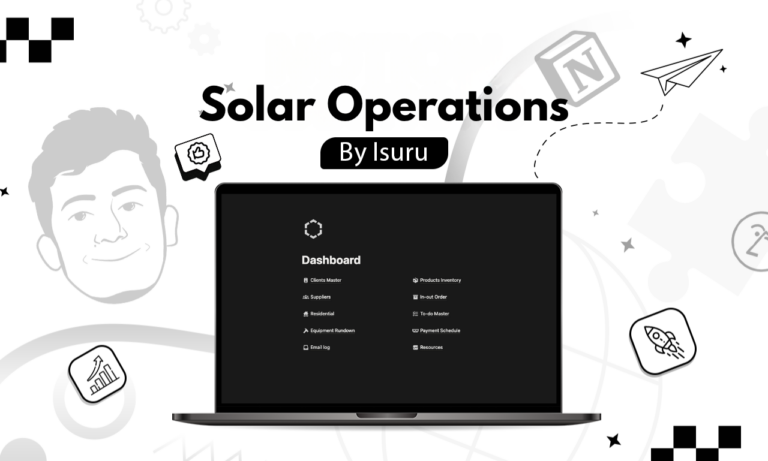
It’s based on a build for a residential solar installation company replacing scattered tools with a single Notion HQ.
TL;DR
- Make the Job the centre of the workspace. Every other database relates to it.
- Each job gets a command center page with everything assembled in one place: customer, address, equipment list, crew assignments, schedule, photos, documents, finance.
- Build per-job BOMs (Bill of Materials) so you know exactly what equipment is allocated to each job at any time.
- Use Notion forms for field-side updates: install completed, photos uploaded, issue reported, customer signed off.
- Keep heavy CAD / design files in dedicated tools; link from the Notion job page.
Why Field Service Operations Sprawl
A solar installation, to use one example, touches a long list of stakeholders and artefacts:
- The salesperson who closed the deal
- The system designer who sized the panels and inverters
- The procurement team ordering equipment
- The installation crew on site
- The electrician hooking up the inverter
- The inspector signing off
- The utility company processing the interconnection
- The customer wanting to know when the system is on
- The accounting team invoicing and tracking payment
Each stakeholder has their own view, often in their own tool. Over the lifecycle of a single job, information is created, updated, and lost in 5+ places. When the customer calls asking why the install date moved, the answer is somewhere, just not in any one place.
The job-centric pattern centralises this without forcing every team into the same view. Different stakeholders see different filters of the same job, but the job itself is one canonical object.
The Core Databases
Jobs
The centre. One row per installation / project / service call.
Fields:
- Job number (auto-incrementing ID)
- Customer (relation to Customers)
- Address (with lat/long for routing)
- Stage (status: Quote → Design → Permitting → Scheduled → Installing → Inspection → Commissioned → Closed)
- Quote / contract value
- Scheduled install date
- Crew lead (relation to Crew)
- Crew members (relation to Crew)
- System size / scope (number, e.g. kW for solar)
- Equipment list (relation to Equipment via a Job-Equipment join database)
- Documents (sub-page, with permits, contracts, sign-off forms)
- Photos (sub-page or external link)
- Notes / issues
Every downstream database has a relation back to Jobs.
Customers
One row per customer, even if they have multiple jobs. Standard CRM fields plus a relation to Jobs.
Crew
One row per crew member. Skills, certifications, availability, hourly rate.
Equipment
One row per piece of inventory: panels, inverters, wiring, brackets, batteries, racking. Stock levels, supplier, cost.
Job-Equipment (the BOM join)
This is the database most field-service workspaces miss. One row per (job, equipment) pairing.
Fields:
- Job (relation)
- Equipment (relation)
- Quantity
- Allocated (checkbox: has this been pulled from inventory)
- Installed (checkbox: has this been mounted on the job)
With this join, you can ask:
- What’s the BOM for Job 124?
- Which jobs are using SunPower P3 panels next week?
- How much equipment is allocated but not yet installed?
Without this join, you’d be tracking BOMs in spreadsheets per job, with no aggregation across jobs.
The Per-Job Command Center
Each job’s page is the working surface. What’s on it:
Header
- Job number, customer name, status badge
- Scheduled install date, days until install
- Crew lead and crew members
- Quick links: customer profile, design files (linked out to CAD tool), permits sub-page
Equipment / BOM section
- Linked-database view of Job-Equipment filtered to this job
- Per-line: equipment name, quantity, allocated, installed
- Roll-up: total cost, total weight (for racking calculations), allocation status
Schedule section
- Install date(s)
- Sub-tasks: site survey, permitting, install day 1, install day 2, electrical hookup, inspection, commissioning
- Each sub-task with a due date and an owner
Documents section
- Contract
- Permits (with permit numbers and approval dates)
- Final inspection sign-off
- Customer sign-off form
- As-built diagram (link to design tool)
Photos section
- Pre-install site photos
- During-install progress photos
- Post-install / commissioning photos
Finance section
- Quote total
- Deposit received
- Progress payments
- Final invoice
- Outstanding balance
Issues / decision log
- Any deviations from the original scope
- Decisions made on-site (changed panel position, added rapid shutdown, etc.)
- Customer requests / disputes
Everything related to one job, on one page. The crew opens it on a tablet on-site. The office opens it for status updates. The customer success team opens it for support questions. Same page, different focus areas.
Field-Side Workflow
The biggest win of the Notion pattern is what the field crew can do on-site, on mobile.
Install start
Crew arrives on-site. Lead opens the job page on tablet. Hits a “Start install” button (Notion automation): updates the job stage to Installing, stamps the start time, notifies the office.
Photo upload
Crew uploads photos directly into the job’s photo sub-page from the phone. No “send photos to dispatch” Slack thread. The photos live with the job.
Issue report
Field crew finds an issue (wrong panel count, damaged equipment, customer change request). They use a Notion form on the job page to log the issue: type, severity, description, photo. The form creates a row in an Issues database, related to the job. The office sees it instantly.
Customer sign-off
Customer reviews the install and signs off via a tablet-based form on the job page. Their signature image (or e-signature link) attaches to the job.
Install complete
Crew hits “Install complete”: stage updates to Inspection, system passes to the next team.
None of these requires the office to be online. Notion mobile syncs whenever the connection is available.
Office-Side Views
While the field uses per-job pages, the office uses cross-job views:
Dispatch view
A timeline / calendar view of jobs, grouped by crew. Drag-to-reschedule. Color by stage.
Schedule conflicts
A filtered view showing jobs scheduled in overlapping time windows for the same crew, the dispatch nightmare flagged automatically.
Equipment allocation
A filtered view of Job-Equipment showing items allocated for next 14 days. Sales / procurement uses this to confirm inventory ahead of installs.
Stage funnel
A board view of jobs grouped by stage. Office sees how many jobs are in each phase.
Today’s installs
A filtered view of jobs scheduled today. Operations check-in surface.
Permit and Inspection Tracking
Specific to permitted trades (solar, electrical, HVAC, plumbing): a Permits database related to Jobs.
Each permit row has:
- Job (relation)
- Permit type (electrical, building, planning)
- Authority (city / county / utility)
- Submitted date
- Approval date
- Permit number
- Inspection date
- Inspection result
A “Permits awaiting approval” view shows the bottleneck. A “Inspections this week” view shows what’s coming up.
This is the data that, in most field service shops, lives in a spreadsheet that the permit coordinator updates manually. In Notion, it’s part of the job-centric architecture and visible to everyone.
What Stays Outside Notion
CAD and design files
Design tools (Aurora Solar, AutoCAD, SketchUp) are specialised. Don’t try to recreate them. Link to the design from the Notion job page. Embed a preview if the tool supports it.
Heavy media (4K install photos and videos)
Notion handles photos and short videos but isn’t optimised for large file libraries. For long-term photo archives, use Google Drive or Dropbox; link from the job.
Specialised field tools
Commercial solar uses tools like Aurora for design, SunFig for proposals, etc. These stay; Notion is the operations hub linking them.
Customer-facing portal (if needed)
Notion can be a customer portal but isn’t optimised for it. For polished customer-facing experiences (status tracking, document signing, payment portal), a dedicated tool is often better. The Notion job page stays internal.
Key Takeaways
- Make the Job the centre of the workspace. Every other database relates to it.
- Build per-job command centers that pull customer, equipment, schedule, photos, documents, and finance into one page.
- Use a Job-Equipment join database for per-job BOMs and cross-job allocation visibility.
- Field-side workflows (start, photo upload, issue report, sign-off) use Notion forms and buttons on the job page.
- Office-side cross-job views handle dispatch, allocation, stage funnel, and today’s schedule.
- Permits and inspections get their own database related to jobs.
- Keep CAD, heavy media, and customer portals outside Notion; link from the job page.